Your Mac, from the couch.
Your iPhone becomes a trackpad, keyboard and remote for your Mac. It runs over your own Wi-Fi, encrypted end to end, with no account.
Free. Requires macOS 15 or later and an iPhone on iOS 18 or later, on the same Wi-Fi.
This is a live demo. The real thing moves your actual Mac.
The trackpad
Made to be used without looking.
Your eyes stay on the Mac. Every gesture answers with its own tap of haptics, so your thumb always knows what happened.
One finger
- SlideMove the pointer
- TapClick
- Hold, then slideDrag
Two fingers
- SlideScroll
- TapRight-click
Three fingers
- Swipe upMission Control
- Swipe downApp Exposé
- Swipe sidewaysSwitch Spaces
Screen peek
See the Mac. Zoom in where you point.
Tap the eye and your Mac’s screen appears under the trackpad. Tap the magnifier and it zooms in on the pointer, so moving the pointer is how you look around.
- Live, not a screenshot. Hardware video at up to 30 frames a second, sent only when something on screen changes.
- Readable on a phone. Zoom makes ordinary text legible, and the view follows the pointer for you.
- Only for your phone. It travels over the same encrypted connection and is never recorded or saved.
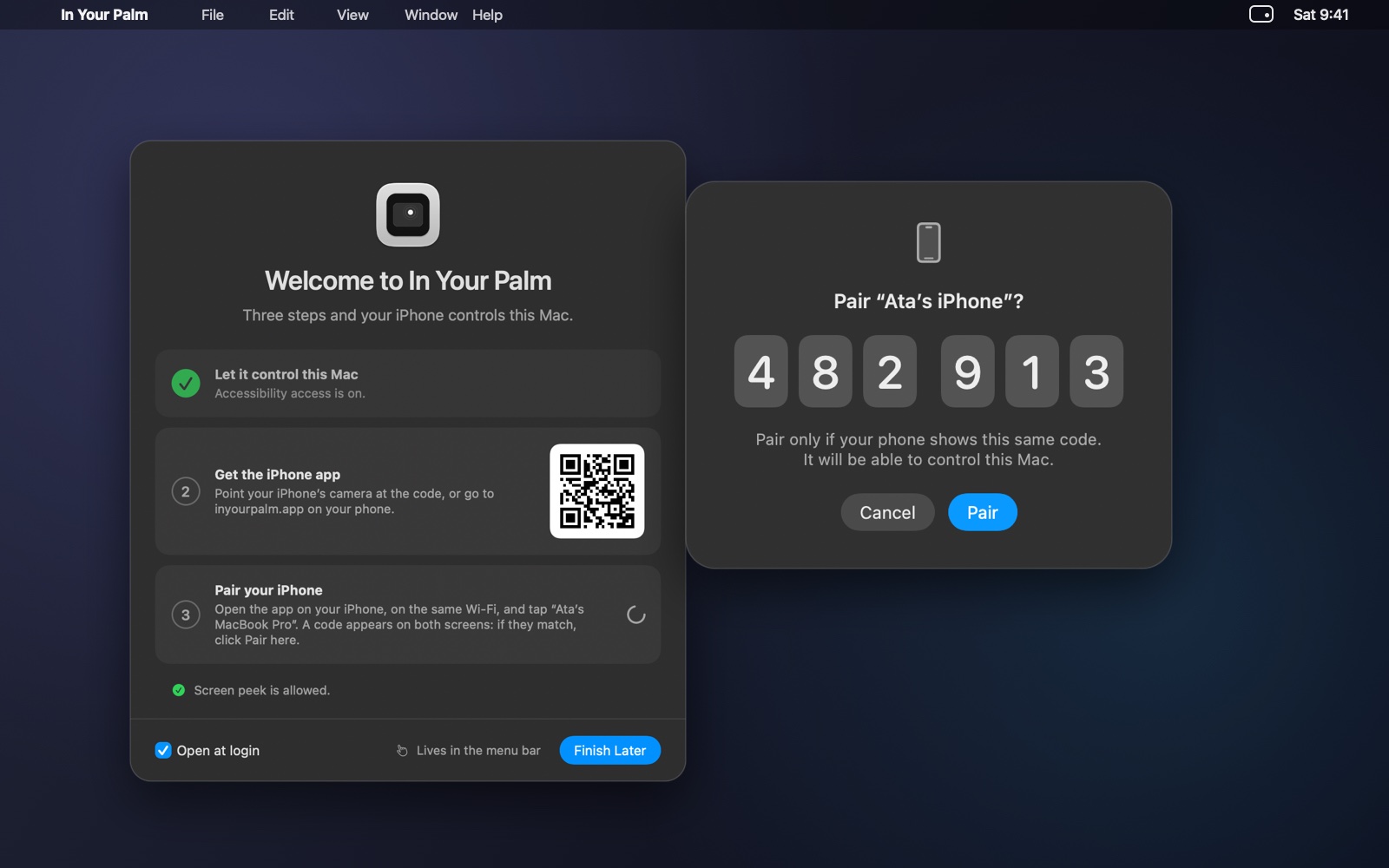
Try it: drag on the phone, or tap the magnifier. The picture is the app’s own pairing window.
More than a mouse
Everything within thumb reach.
A keyboard that does it all
The normal iPhone keyboard, dictation included, plus esc, tab, arrows and one-tap ⌘ ⌥ ⌃ ⇧ for shortcuts. It follows your Mac’s keyboard layout.
Your Dock, in your hand
See the apps running on your Mac with their real icons, and switch between them with a tap.
Peek at the screen
See your Mac’s screen live under the trackpad and zoom in so it follows the pointer. Handy when the Mac is across the room or on a projector.
Fast enough to forget
Pointer motion is sent up to 120 times a second over a low-latency channel. The app shows the round-trip time, so you can see it for yourself.
Media and volume
Play, pause, skip, mute and change the volume. Lock the Mac or put its display to sleep before you get up.
Sideways works too
Turn the phone and the trackpad fills the screen, with your apps down one edge and the controls down the other.
Privacy
Between your phone and your Mac. Nobody else.
- Encrypted end to end. Everything you type and every movement is encrypted with keys only your two devices hold.
- Never leaves your Wi-Fi. There is no server in the middle and nothing to sign up for.
- You approve every phone. Pairing only completes when someone at the Mac clicks Pair.
- No analytics, no ads, no tracking. The apps collect nothing. Read the privacy policy.
Setup
Ready in about a minute.
- Install on your MacDownload In Your Palm and open it. It lives in the menu bar.
- Allow controlmacOS asks for Accessibility permission, so the app can move the pointer and type.
- Open the iPhone appYour Mac appears on its own. Tap it.
- Pair onceCheck that both screens show the same code and click Pair. After that it reconnects by itself.
Questions
Good to know.
Does it work away from home or over mobile data?
No. Both devices must be on the same Wi-Fi network. That is also what keeps your data off the internet.
Can someone else on my Wi-Fi take control?
Not without you. A new phone can only pair when someone at the Mac clicks Pair after comparing the codes. After that, every message is encrypted with a key only the two paired devices hold.
Why isn’t the Mac app in the Mac App Store?
Apps there run in a sandbox that blocks controlling other apps, which is the whole point of this one. Instead it is signed and notarized by Apple, so it opens without warnings.
Which permissions does the Mac app need?
Accessibility, to move the pointer and type for you. Screen Recording too, but only if you use the screen peek. Both are requested by macOS and can be turned off in System Settings.
What does it cost?
The Mac app is free. The iPhone app is on its way to the App Store.
Something isn’t working. Where do I get help?
The support page covers the common cases, and you can always write to hello@inyourpalm.app.